Print preparation
magic3d for 3d printing
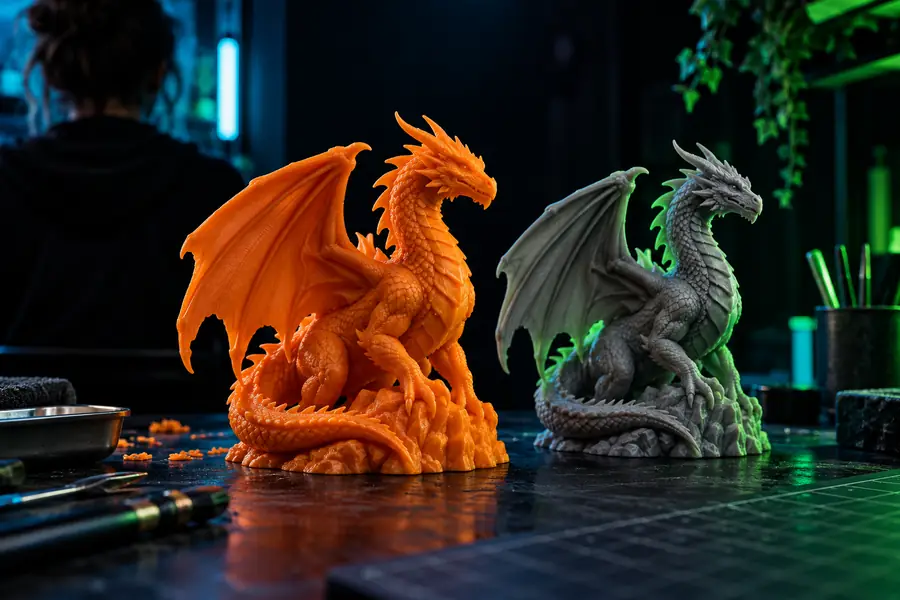
magic3d can help turn a clear object idea into a 3D model starting point for 3D printing. Treat the generated result as a design draft, then inspect and prepare it for your chosen printer.
Related paths
A practical route from idea to printable starting point
The best results come from connecting the right concept, model, and preparation steps instead of treating generation as the final stage.
- magic3d online free Review the online workflow before deciding how you want to create and inspect a model.
- magic3d for 3d models See how the broader model-making use case frames prompts, shape quality, and iteration.
- what is magic3d nvidia Start with the background context if you want a clearer definition before exploring print preparation.
Core mechanism
Three checks that matter before printing
A generated mesh is more useful when you move through these three stages in order and record what still needs attention.
-
1
Describe the object
Write the object, silhouette, material impression, and important features in plain language. A focused prompt gives magic3d a clearer design target than a list of unrelated details.
-
2
Inspect the mesh
Look for thin walls, open areas, floating parts, awkward joins, and details that may not survive physical scale. Separate visual appeal from print readiness.
-
3
Prepare the file
Use your normal mesh repair and slicing workflow to check orientation, supports, wall thickness, scale, and export settings before sending the model to a printer.
Workflow comparison
Step-by-step: concept model versus print preparation
This comparison keeps the role of magic3d clear: it can support the concept stage, while the printer-facing checks remain deliberate technical work.
| Magic3d concept workflow | Manual print preparation | |
|---|---|---|
| Starting point | A written description of the intended object | A mesh, CAD file, or scanned shape already selected |
| Main purpose | Explore form and create a visual model direction | Make the selected model suitable for a physical process |
| Shape decisions | Prompt wording guides silhouette and visible features | The operator edits geometry, scale, and orientation |
| Small details | May appear visually but need physical review | Checked against nozzle, resin, layer, or material limits |
| Mesh condition | Must be inspected rather than assumed watertight | Repaired and validated in the chosen preparation tool |
| Final handoff | A model concept or starting asset | A sliced or otherwise printer-ready job file |
Honest boundaries
Limits and edges
magic3d is most useful as part of a 3D printing workflow, not as a substitute for engineering review or printer-specific preparation.
It cannot guarantee a printable mesh
A model can look complete while containing holes, non-manifold edges, intersecting parts, or fragile geometry.
What to do instead
Run a mesh analysis and repair pass before slicing or fabrication.
It cannot know your printer setup
No single generated shape automatically accounts for nozzle size, resin behavior, layer height, build volume, or material choice.
What to do instead
Apply the tolerances and orientation rules for your actual printer and material.
It cannot replace functional testing
A visually convincing part may flex, break, fit poorly, or fail under load when made in a real material.
What to do instead
Prototype conservatively, test the part, and revise dimensions from measured results.
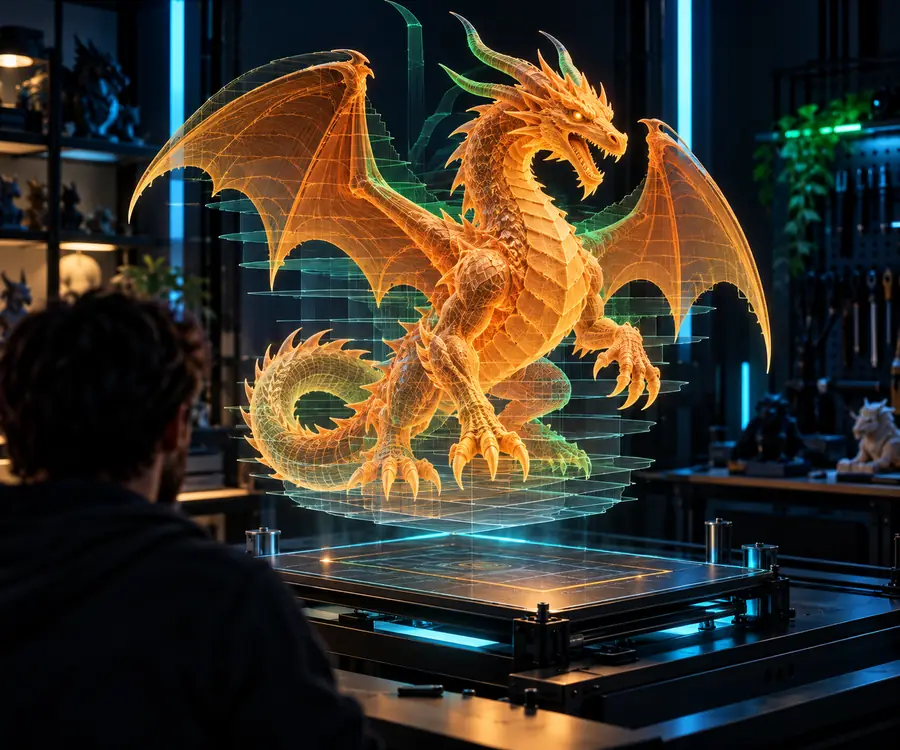
The second image suggests a use direction, not proof of print readiness.
Concept stagePhysical-use directionUse a focused description to begin with magic3d, then bring the result into your normal inspection and slicing workflow. The goal is a useful concept that can be tested, edited, and prepared for the real constraints of 3D printing.
Turn a print idea into a model starting point
- Describe the object clearly
- Inspect geometry before slicing
- Adjust for your printer and material
Common questions
FAQ
magic3d can create a 3D model starting point from an object description. You should inspect and prepare the result before treating it as suitable for 3D printing, because visual generation does not guarantee a sound or functional mesh.
Not necessarily. A generated model may need repairs, scale changes, orientation choices, support planning, or detail adjustments before it can move through a printer-specific workflow.
Check for open surfaces, non-manifold geometry, thin walls, floating pieces, weak joins, unsuitable scale, and details smaller than your process can reproduce. Then verify the model in your usual slicer or preparation tool.
You should not assume that it can automatically account for every printer, material, nozzle, resin, layer height, or build-volume constraint. Apply the settings and tolerances required by your own 3D printing setup.